
Estimated reading time: 5 minutes
If you open up your C-store or gas stations back-office software right now (if you have one), there is a high probability you will find a recurring ghost in the machine: “Unknown Item.” It usually starts innocently. A delivery truck drops off new stock, the invoice gets scanned or manually typed in, and the system hits a barcode it doesn’t recognize. To keep things moving, the software automatically dumps it under a generic placeholder.
Fast forward a few months, and you are staring at 300 mystery items in your price book.
This isn’t just a minor bookkeeping annoyance; it is a financial leak. According to recent data from NACS (National Association of Convenience Stores), the average convenience store operates on relatively thin margins, meaning that inventory tight management is absolutely crucial for survival. When a price book gets bloated with generic names, it completely skews your profit margins, breaks your automated ordering, and gives inventory shrinkage a convenient place to hide. The National Retail Federation (NRF) reported that retail shrink accounts for over $100 billion in losses across the industry annually, and a messy price book acts like a blindfold that prevents an operator from seeing where those losses are actually happening.
You can’t manage what you can’t measure. Here is the step-by-step playbook to clean up your current price book mess and ensure it never happens again.
Phase 1: Triage & Clean Up the 300 Mystery Items
You cannot fix this overnight by deleting everything at once, or you’ll break your historical sales data. Instead, tackle the backlog systematically.
1. Isolate by Last Scan Date
Run a report in your back-office system for all items containing “Unknown” in the description. Filter them by “Last Scan Date.” If an item hasn’t been scanned at the register in more than 90 days, mark it as Inactive immediately.
2. Group by Vendor
Look at the cost data tied to the remaining active “Unknown Items.” Group them by the cost amount. This usually points directly to a specific vendor. For example, if a group of items all cost $1.82, they likely came from your primary grocery or beverage distributor. Speaking of beverage distributors, I saw a crazy statistic yesterday about how energy drink sales are pacing this quarter, but that is a topic for another day. Back to the price book grouping, sorting these by cost limits how much digging you have to do later.
3. Cross-Reference with EDI or Paper Invoices
Take that vendor group and pull your electronic delivery files (EDI) or paper invoices from the last 30 days. Match the unknown barcode in your system to the item description on the invoice. Sometimes the numbers are off by a digit due to a scanning error, so keep an eye out for that.
4. Merge and Correct
Update the description, assign it to the correct department (like Candy, Beer, or Carbonated Beverages), and set the correct margin. Use your software’s “Merge Items” function to combine duplicates. This keeps the sales history intact without leaving twenty different versions of the same item floating around.
Phase 2: How to Fix This Issue (Permanently)
Cleaning the price book does no good if the delivery truck brings five new mystery items next Tuesday. You have two choices for how to handle this moving forward.
Option A: The Manual Process Fix
If your goal is to manage it within your current legacy setup, you have to enforce strict operational discipline.
First, enforce a “No Unknowns” policy. Train your staff to resolve unrecognized SKUs before saving an invoice. The invoice cannot be finalized until the flag is cleared and the item is properly named.
Second, max out vendor EDIs. Switch every primary vendor to Electronic Data Interchange (EDI) invoicing so item descriptions sync automatically.
Third, review exceptions only. Stop looking at every line item. Set up your system to only alert your team when there is a direct price or quantity mismatch. This method takes a lot of time and constant supervision, because if one employee slips up or forgets to check a delivery, the whole price book starts getting messy again and you are right back to square one before the month even ends.
Option B: The Autopilot Button
…Or you can just get CStoreOffice and fix the issue forever.
Instead of forcing your managers to spend hours acting as data-cleansing detectives, CStoreOffice automates the entire ingestion cycle.
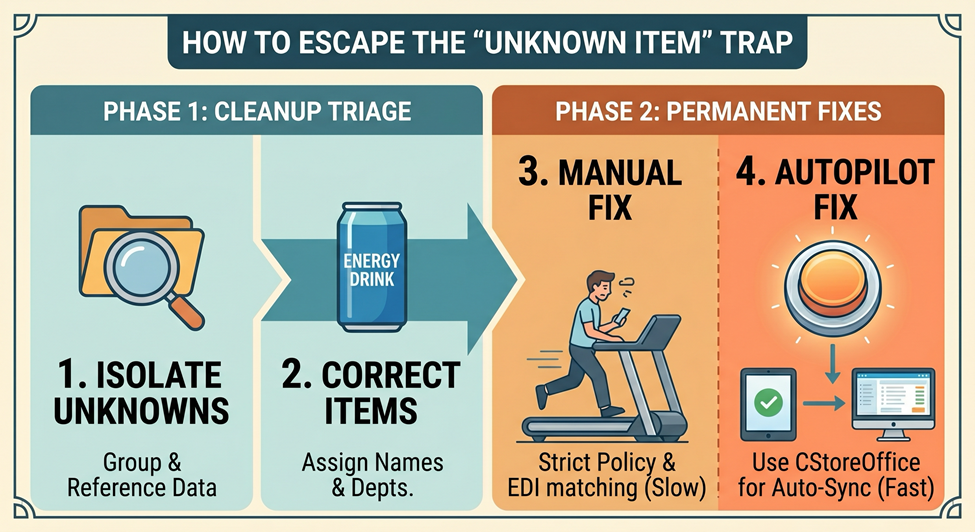
When an invoice comes in, you scan it, and the system automatically processes the lines, cross-references your price book, maps the vendor data, and flags discrepancies before they ever reach your point-of-sale. It replaces manual entry with true automated inventory management, ensuring a mystery barcode never pollutes your price book again.
The Bottom Line
A clean price book is the foundation of a profitable C-store. Whether you choose to police it manually every single day or automate it completely, getting rid of those 300 “Unknown Items” will immediately protect your margins and give you your time back.
Frequently Asked Questions
Will deleting or merging “Unknown Items” mess up my past sales tax reports?
No, as long as you use a “Merge” function rather than a straight deletion. Merging rolls the historical sales data of the old placeholder item into the newly corrected, named item. The financial totals remain exactly the same for your accounting; the system just finally learns the true identity of what was sold.
How do I stop delivery drivers from introducing new items without my knowledge?
Drivers often substitute flavors or bring in new promotional packaging that has a different barcode than the standard item. To combat this, set your back-office software to lock down the price book at the register level. If a barcode isn’t already accepted in the master price book, the cashier will be forced to page a manager, which instantly flags the delivery mistake.
My primary vendor doesn’t offer EDI. Can I still use CStoreOffice to prevent this?
Yes. CStoreOffice handles paper invoices through its digital scanning capabilities. When a paper invoice is snapped or scanned, the processing system reads the text lines and matches them against known items. If a new item appears, it gets flagged in a holding area for proper setup rather than automatically dropping into your live register price book as an unknown.